

Invite Volunteer
Enabling organizations to invite volunteers to apply for published opportunities.

Invite to apply primary CTA button with icon used in shipped version
Role: Senior Product Designer (sole designer)
Team: Developer, director, and principal
Scope: End-to-end product design, UX/UI design, implementation collaboration, QA, and post-launch refinement.
Timeline: ~2-3 weeks
Released: February 2025
Scale & Impact
385
Eligible invite page views
280
Invitations sent through May 2026
~72.7%
Invite completion rate
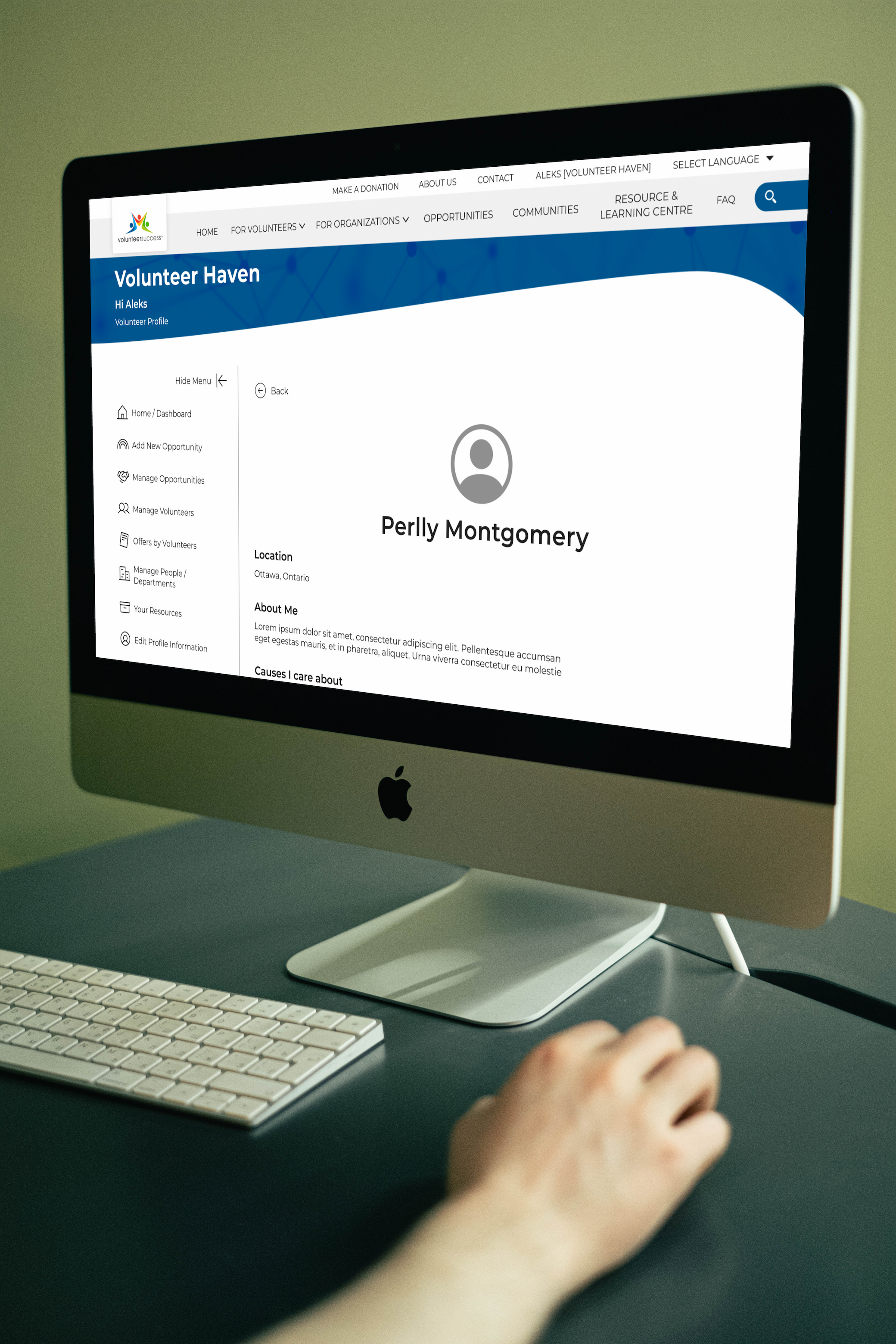
Pre-feature volunteer profile: organizations could review prospective volunteers but had no way to initiate contact
Problem
Organization users could find volunteers who looked like a good fit for a published opportunity, but they couldn’t reach out first and had to wait for the volunteer to express interest.
Organizations could publish opportunities and browse volunteer profiles, but had no way to initiate contact with a volunteer they thought would be interested in their opportunity. Contact could only begin after the volunteer expressed interest.
We waited until five different organizations submitted support requests for the same capability before prioritizing it for the next release cycle. This confirmed that the problem was a recurring organizational need rather than an isolated want.
Organizations needed a way to:
Invite a volunteer to work with them by applying or signing up for an opportunity
Link the volunteer to the opportunity directly
Know when the invitation was successfully sent
Continue looking for other volunteers afterward
Targeted Users

Rushed and on a time crunch
A volunteer manager or coordinator recruiting for a charity event with a fixed date, specific roles, and shifts that need to be filled before the event.
Typical behaviors:
Publishes volunteer opportunities for an event
Invites prospective volunteers to sign up
Monitors sign-ups to ensure all roles are filled
Searches volunteer profiles and boards for potential matches
Follows up with volunteers to confirm participation
Recruits against a deadline

Ensures ongoing roles are filled
A volunteer manager or coordinator recruiting for roles that remain available throughout the year, often with recurring or flexible shifts.
Typical behaviors:
Publishes ongoing volunteer opportunities
Reviews volunteer interest and availability to meet organizational needs
Browses volunteer profiles when needed
Invites prospective volunteers to apply
Recruits continuously
Occasionally recruits against a deadline
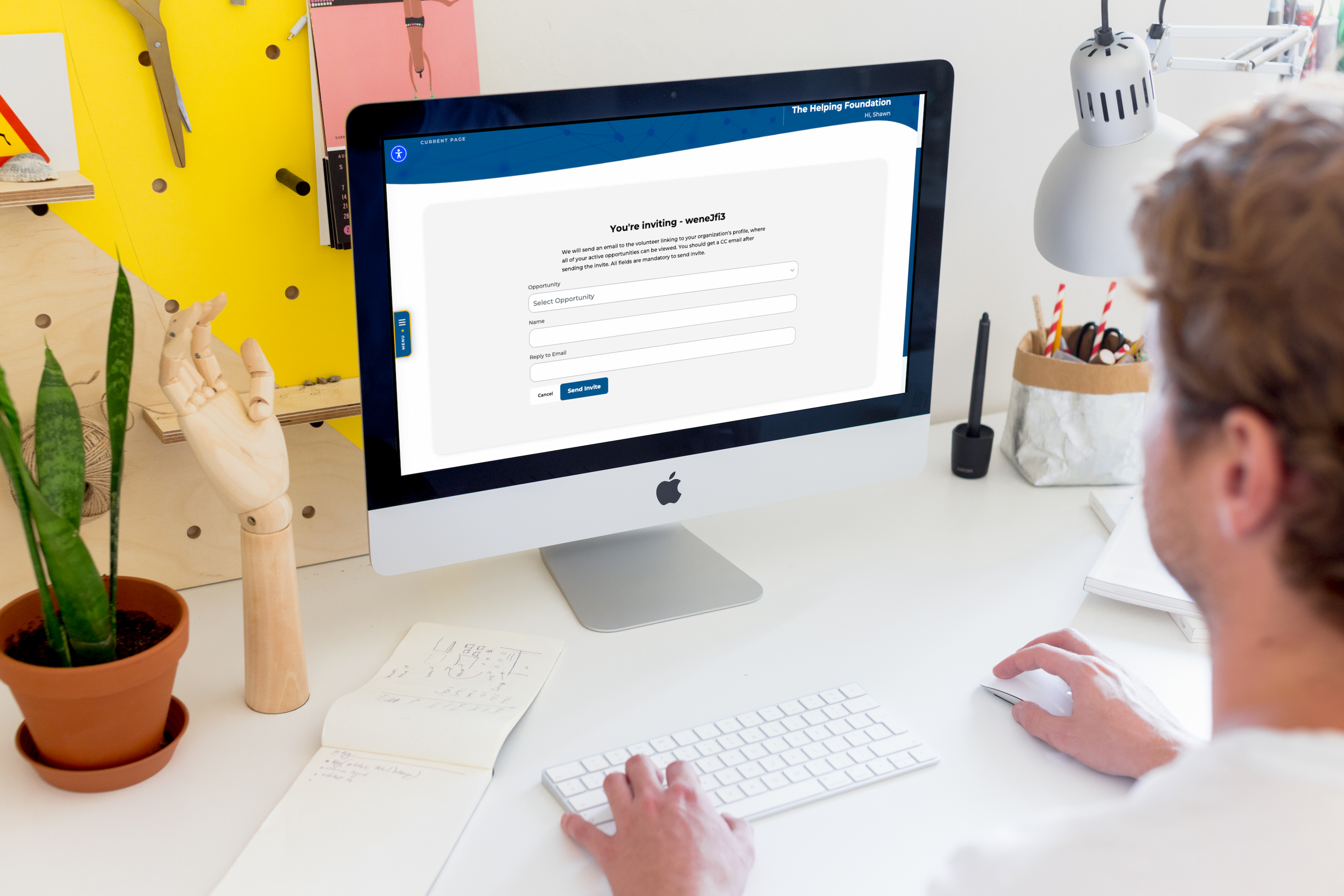
Screenshot of shipped volunteer invite form
Goal
Enable organization users to invite a volunteer to an opportunity and then continue recruiting.
After reviewing a volunteer’s profile, an organization user needed a direct way to invite that person to apply to one of its published opportunities and then continue recruiting.
The feature needed to:
Start from the volunteer profile detail page
Let the organization select one of its published opportunities
Provide the contact information needed for the invitation
Send the invitation to the volunteer
Send a copy of the invitation to the sender
Confirm that the invitation was successfully sent
Return the organization user to the volunteer profile listing
Constraints & Considerations
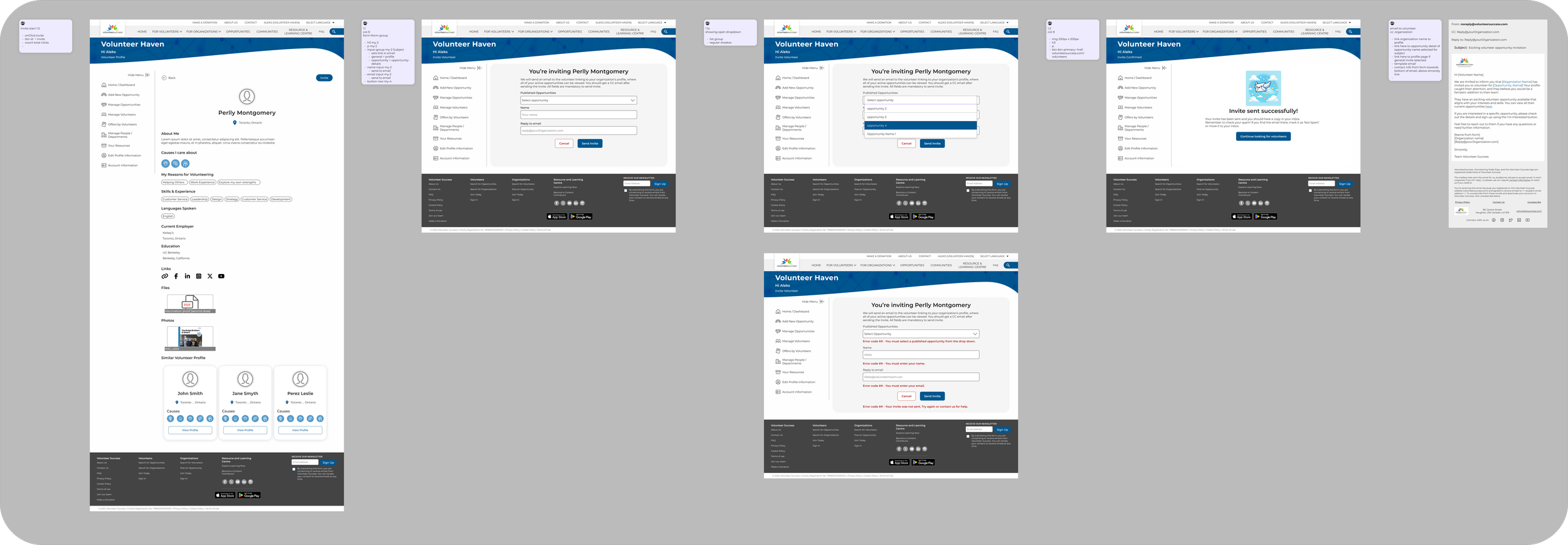
Figma hi-fi mockups with flow and production notes
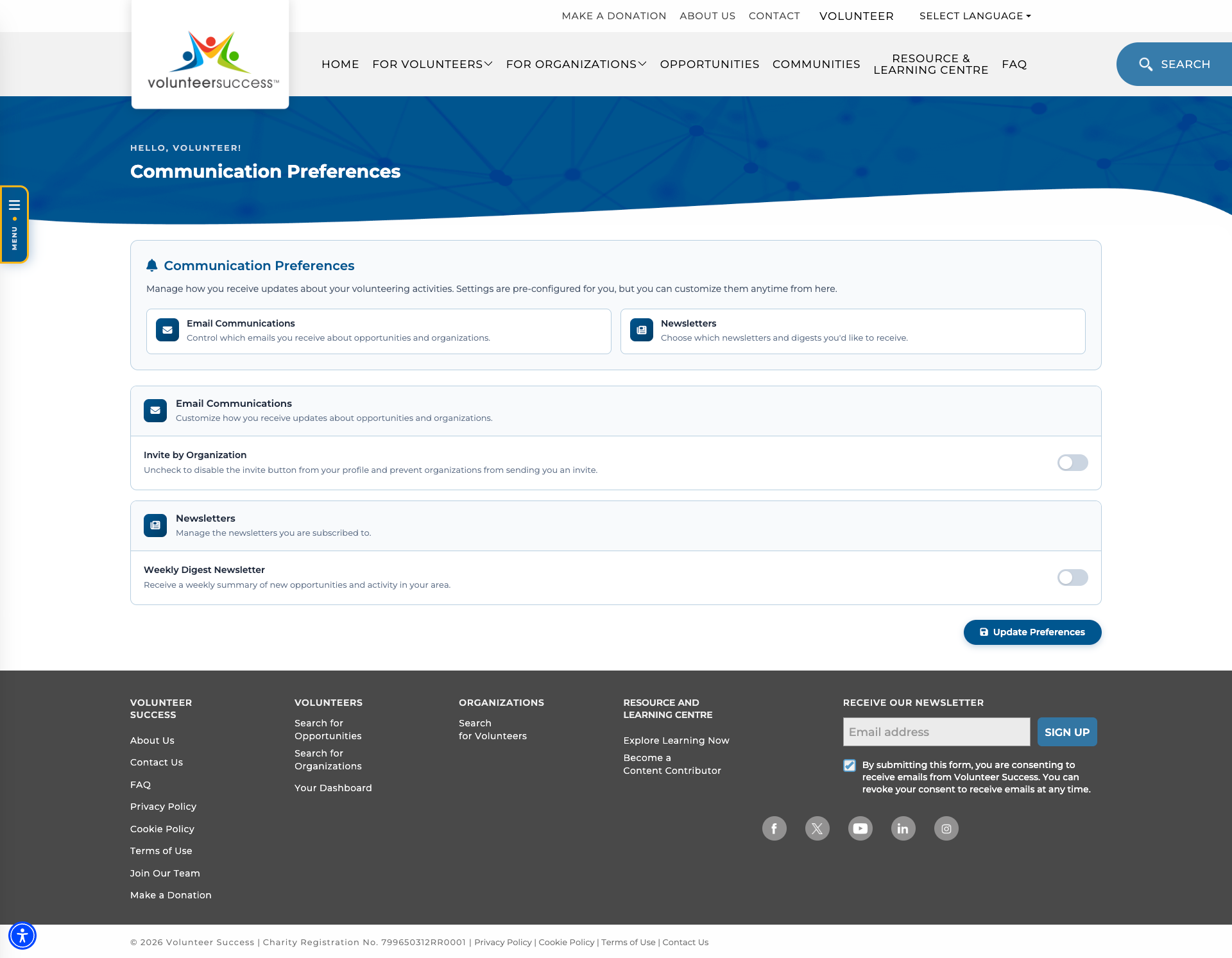
Communication preferences page for volunteer to opt out of invites
Shaping the invite flow
The feature needed to support organization recruiting without creating unrestricted outreach to volunteers.
Communication Approach
We researched on-platform messaging and found the development time, implementation effort, and ongoing cost were excessive for the not-for-profit platform. Utilizing the existing email system was the fastest way to release the MVP quickly.
Key considerations included:
Registered organization / approved user
Start from the volunteer profile detail page
Volunteer protection and spam prevention
Published opportunity requirement
Volunteer opt-out
Incomplete volunteer profiles hidden
Invitation form
Pre-filled contact information
Name
Email
A published opportunity must be selected to enable the Send Invite button
Invitation email
Includes link to the opportunity detail page
Include link to the organization profile
Includes sender’s name and email
Sender is copied on the email
Confirmation page
Success image
Returns the user to the same place in the volunteer listing
Defaults to page 1 of the volunteer listing
Components
Images
Invitation successfully sent
Searchable drop down
Input fields
Name
Email
Icons
Down caret
X Circled
Buttons
Invite
Cancel
Send Invite
Return to volunteer profile listings
Designing the Invite Flow
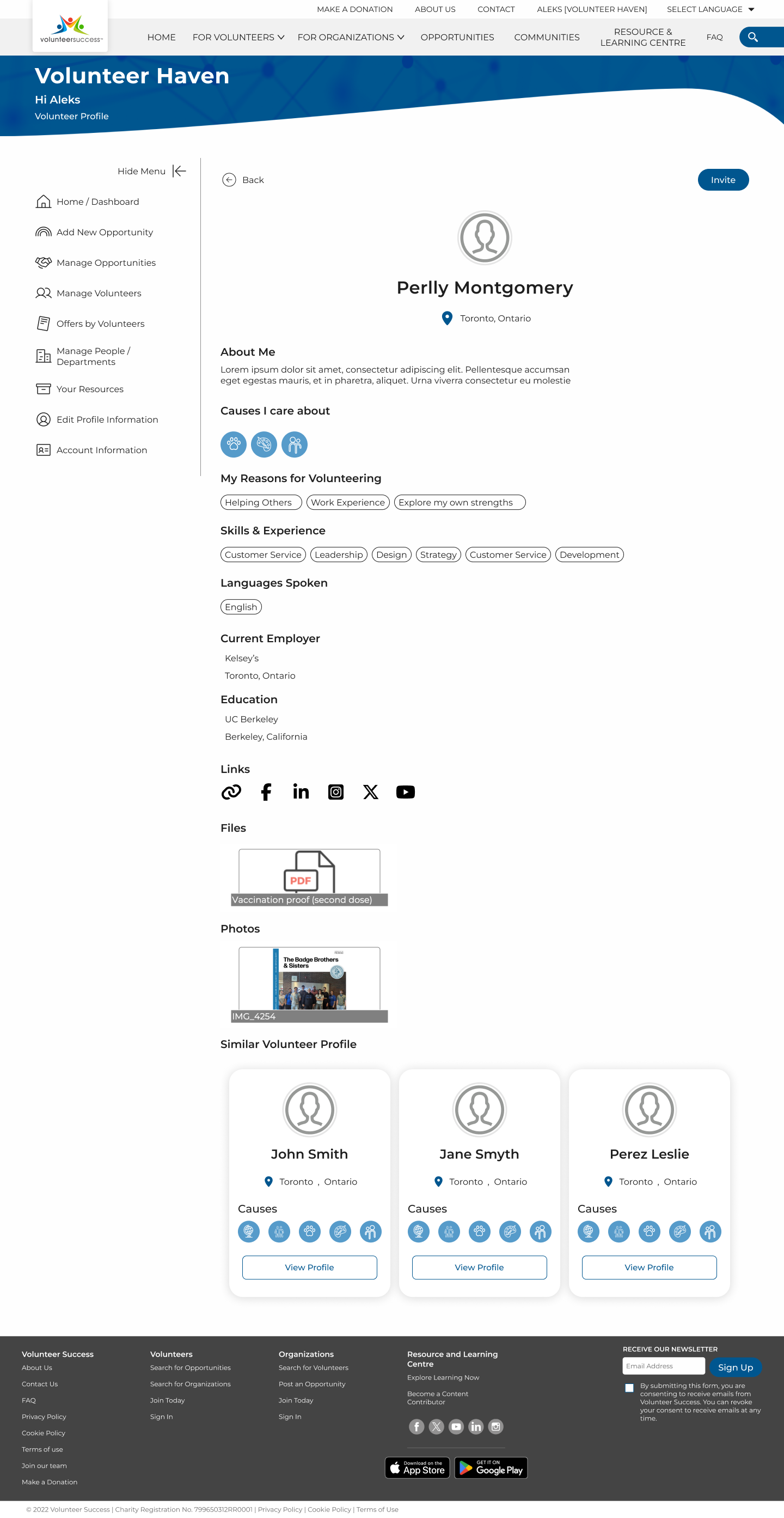
Invite button on volunteer profile details
Invite Form
The form focuses on the minimum information required to invite a volunteer to apply for a published opportunity.
To maximize compatibility, the form was designed as its own page rather than a modal. Modals can be harder for some users to interact with, may create compatibility issues, and are more difficult to tag and measure reliably. A dedicated page and minimal design solved those issues.
Published opportunities are available in a searchable dropdown, while the organization user’s name and email are pre-filled to reduce avoidable errors. Collaborating with the developer helped confirm the requirements for the page:
Published volunteer opportunity list dropdown
Name input (pre-filled with the user’s information & editable)
Email input (pre-filled with the user’s information & editable)
Cancel button (button-secondary-alert)
Returns to the volunteer profile detail page
Send (button-filled)
Disabled until all required information is complete
Navigates to confirmation page after a successful send
Displays an error message if the invitation cannot be sent
Invite Button
Placing the Invite button in the most natural and logical position for the starting point.
User testing and research with organization users showed they would select See Details when a volunteer appeared to be a good fit and review their profile for more information. We watched users scroll through the profile then scroll back up to the top. Since a majority of users did this, it only made sense to add the initial button to the top. This, along with preventing organizations from spamming volunteers, made this location the logical starting point for the invite feature.
User Journey
Search or browse volunteer profile listings → See Details → Invite to Apply → Invite form → Send invite → Confirmation: invite sent → Back to volunteer profile listing (previous spot)
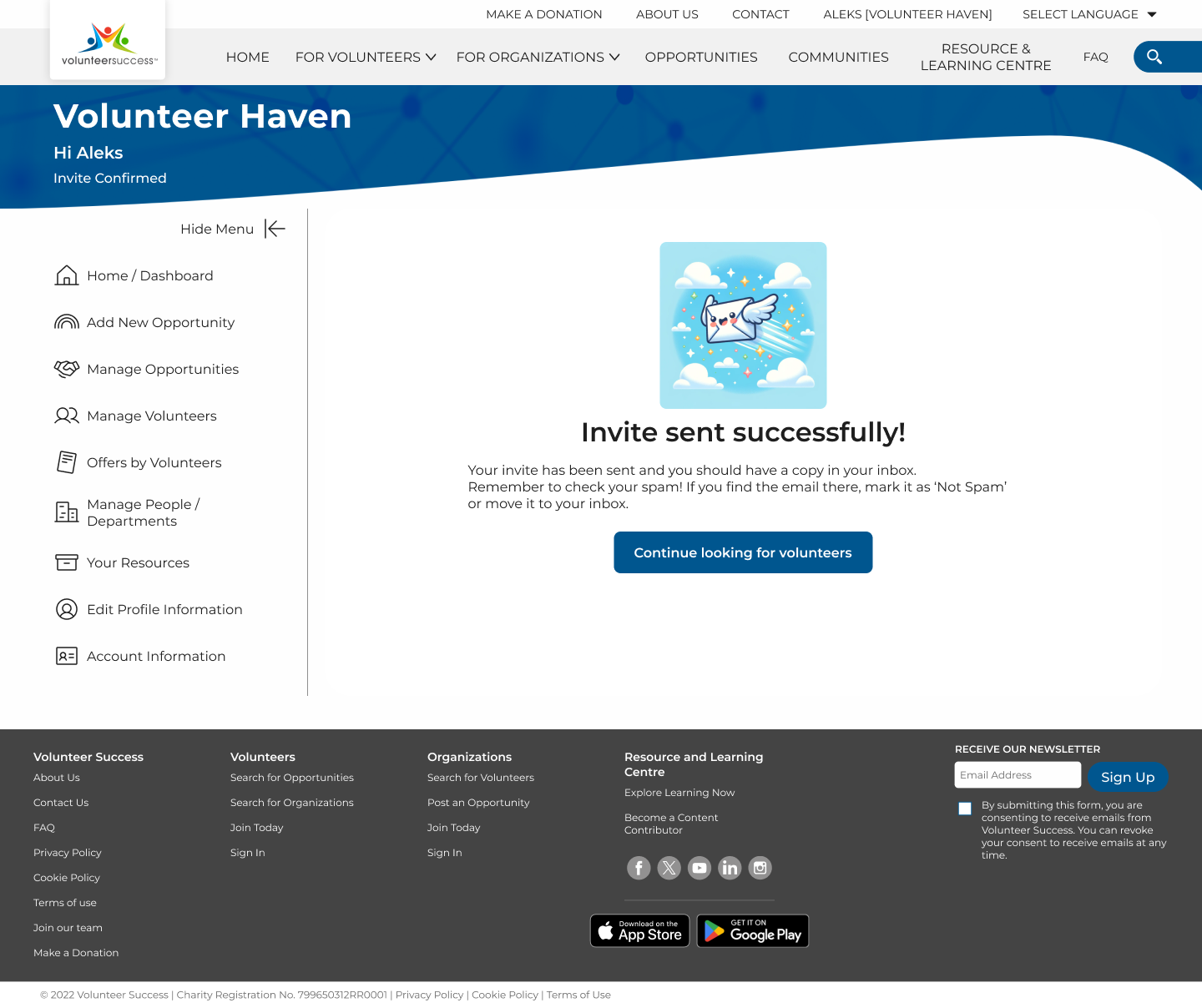
Invite sent successfully confirmation page
Confirmation Page
The final page confirms a sent invitation and returns the organization user to the volunteer listing.
After the invitation is successfully sent, the user is taken to a confirmation page. If the invitation cannot be sent, an error message is displayed after they select Send Invite. The confirmation page includes a Continue looking for volunteers button that returns the user to their previous place in the volunteer listing, allowing them to continue recruiting.
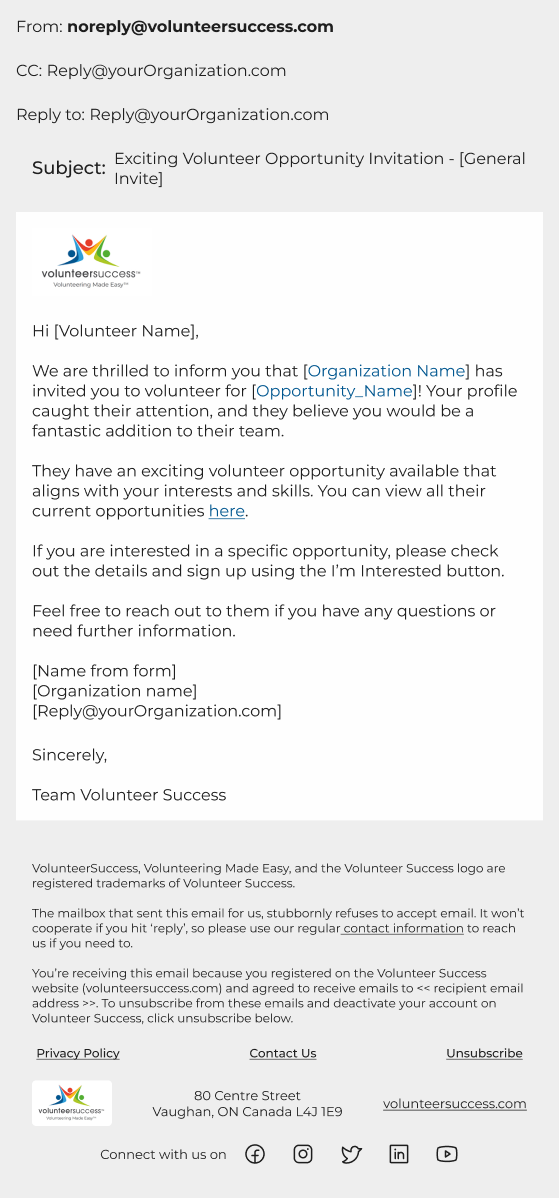
Email template copy and linking.
Invitation Email
The platform already used email templates for other communications, so the developer was able to create a dedicated template for volunteer invitations using the existing email system.
The invitation was kept short and focused on the volunteer being invited. It includes:
Volunteer name
Linked organization name
Linked opportunity name
A link to the organization’s current opportunity list
Instructions to review the opportunity and use I’m Interested to sign up
Contact name from the invitation form
Organization name
Reply email from the invitation form
The email is sent from a no-reply address, while the sending user is CC’d and their email is used as the Reply-To address. This allows volunteers who select reply to respond directly to the organization user instead of the no-reply mailbox.
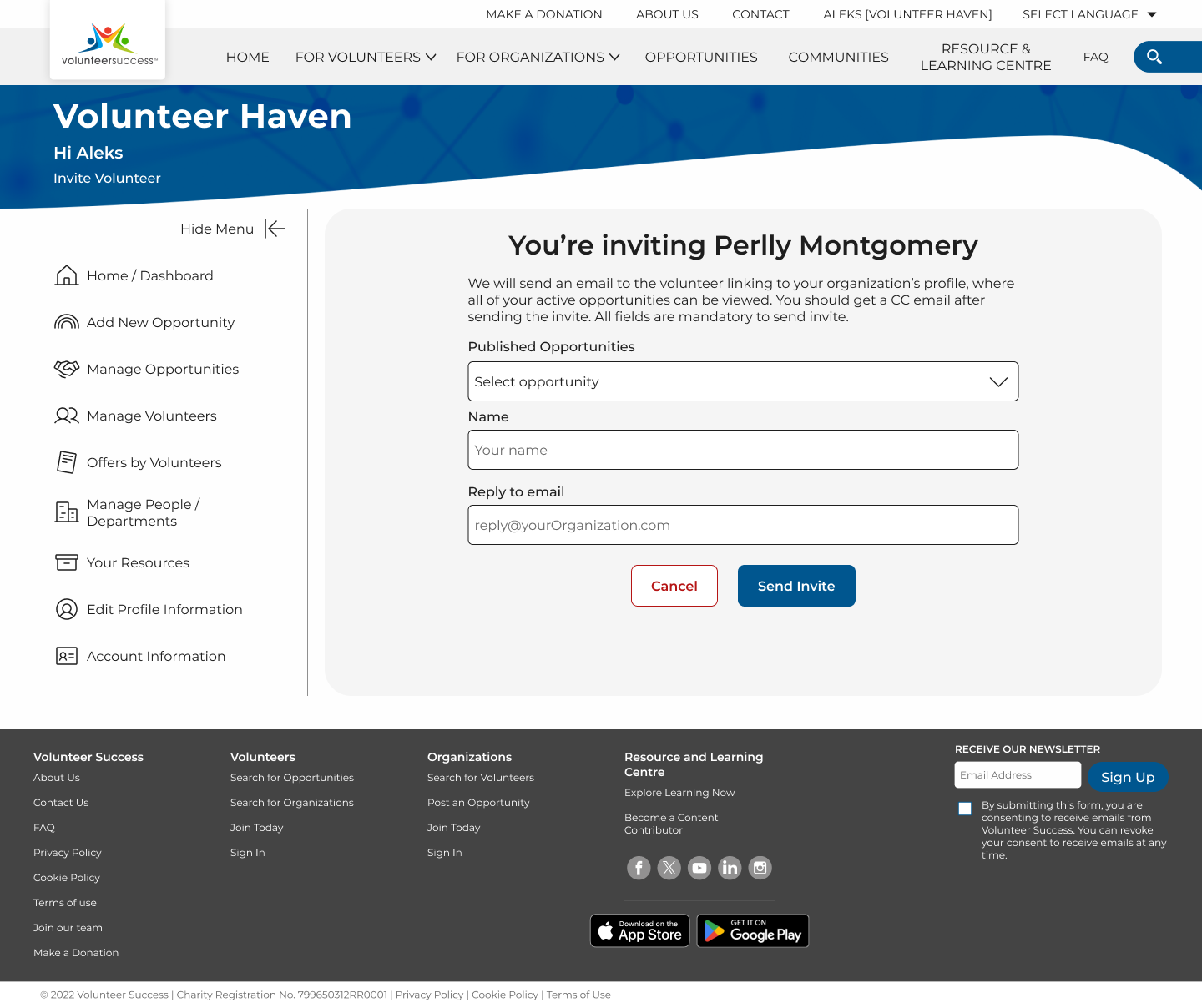
Organization user logged in and on the invite volunteer page
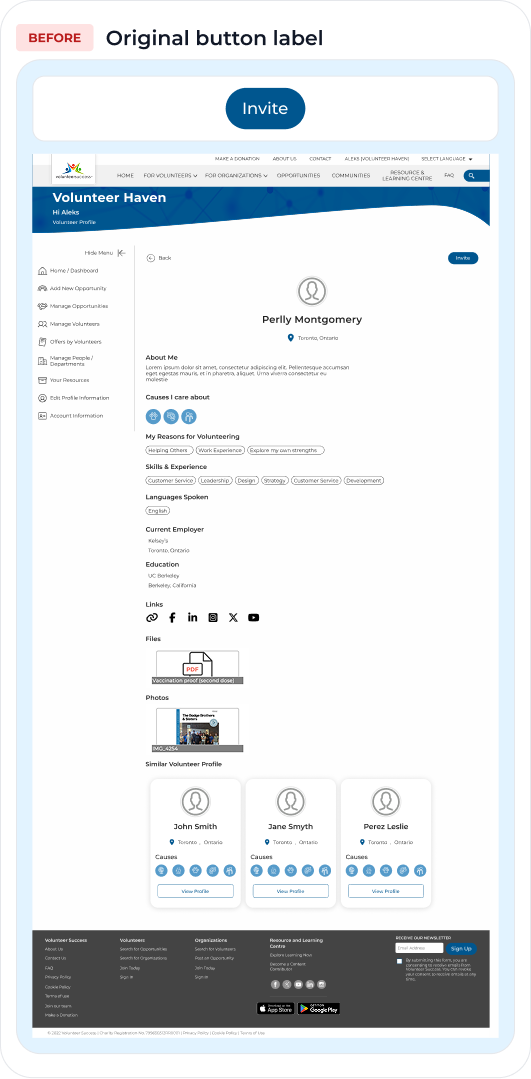
Original button label: Invite
Refining the End-to-End Experience
Clarifying the Action and Missing States
The button label made users pause or avoid selecting it.
During usability testing with five organization users, less explicit CTA wording caused some of them to hesitate or even resist selecting it. Participants said they were scared that clicking the button would do something they could not undo.
Invite to Apply communicated the action more clearly and became the final CTA.
After the initial release, we discovered that organizations without a published opportunity could enter the invitation form and encounter an empty dropdown. Working directly with the developer, I added explanatory guidance and the appropriate disabled state in a targeted follow-up release.
The targeted release added:
Instructions explaining that a published opportunity is required
Clear messaging when no published opportunities are available
A Send Invite button that remains disabled until a published opportunity is selected
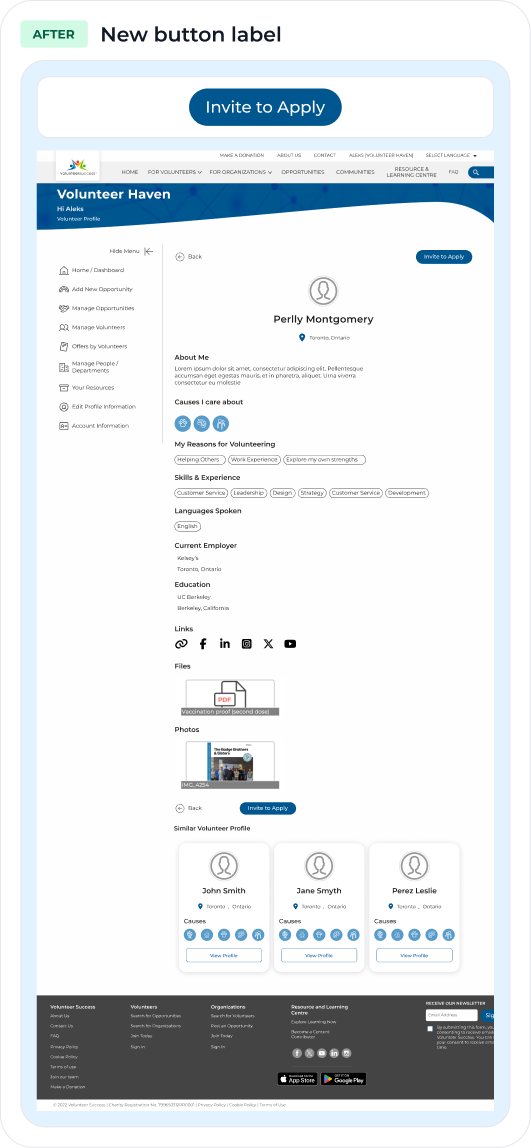
New button label: Invite to Apply
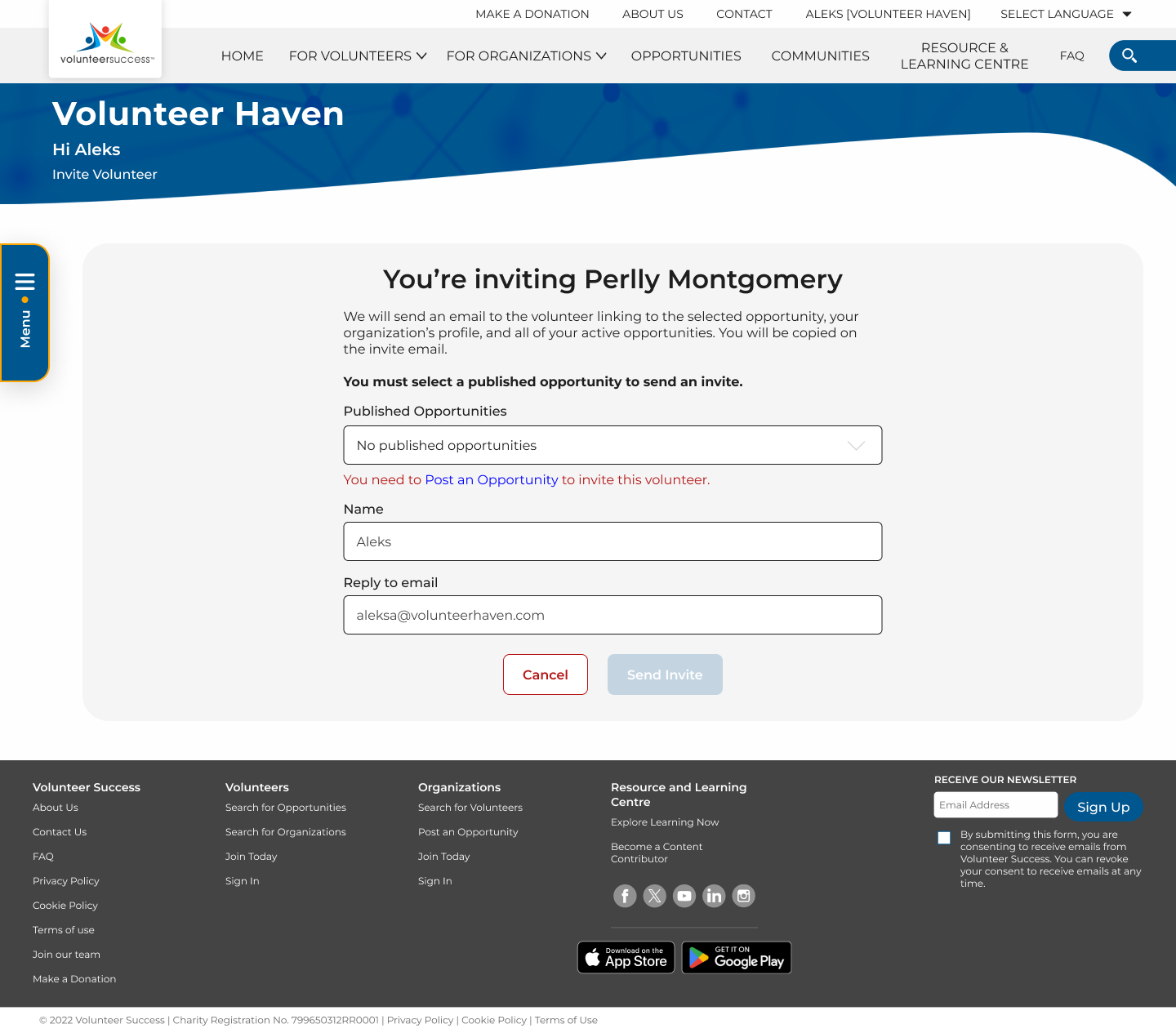
No published opportunities empty state
Results
Proactive recruiting for organization users.
Organization users can invite prospective volunteers to apply to their published opportunity.
The invite flow starts from the volunteer profile detail page and uses a simple form to populate a templated email that notifies the volunteer about the opportunity.
After release:
385 eligible views to the Invite Volunteer page through May 2026
280 invites sent through May 2026
72.7% successful invite conversions
0 related support requests recorded after release
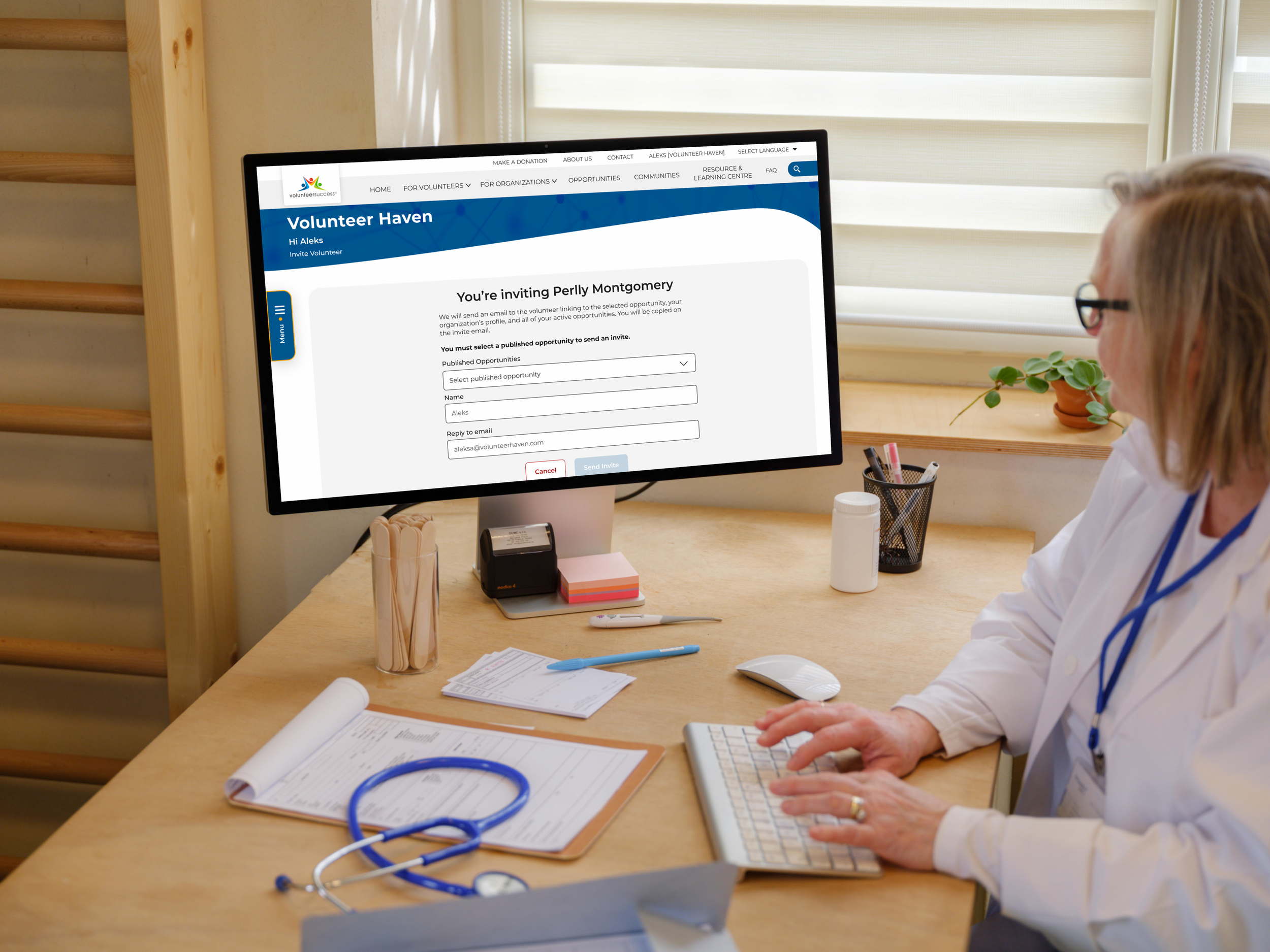
Organization user on the invite volunteer page.
Final Thoughts
Ship the MVP, then fine-tune the experience around it.
That lesson came directly from working on the Opportunities page for a few years. Early on, a misaligned backend and frontend meant we couldn’t implement the best front-end components for the discovery experience. It’s a nuanced balance of components and data for performance and accuracy. Once we converted and updated the technology stack, adopting new components got easier, and just as importantly, a full and implementable component set kept branding and styling aligned across the whole platform, not just this page.
On a small team, the right call was designing within a system we all were familiar with rather than pushing for something more custom. That tradeoff shipped the MVP faster and made future pre-release changes fewer and easier to manage.
The page also created value outside its original scope: customer support started utilizing it to find and link volunteers directly to a list of possible opportunities, helping people find something to do. Sharing those search results meant building a secure, shareable URL, which proved that solid information architecture pays off in ways you don’t always plan for.

Mockup of Invite to Apply button added to volunteer profile cards